

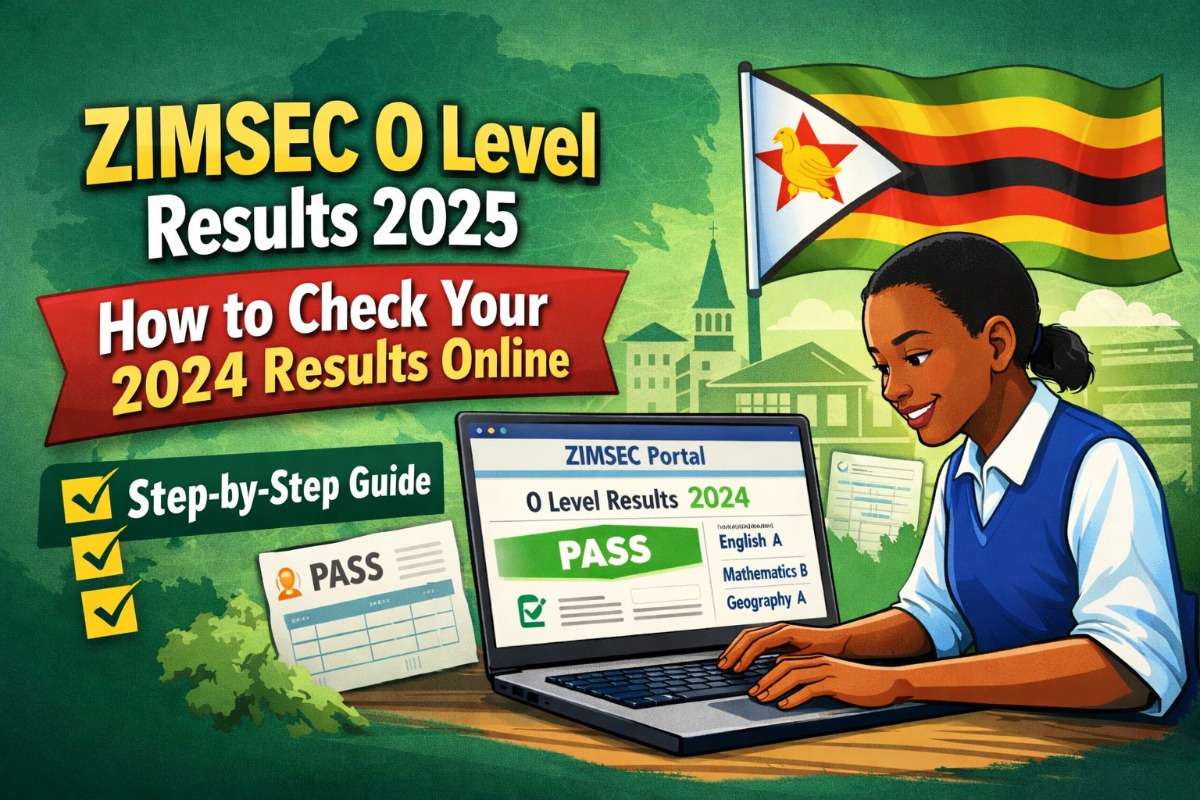
ZIMSEC has fully embraced digital access, making it easier for students across Zimbabwe to quickly check their O Level results from home, at school, or even on a smartphone. If you’re waiting for your 2024 O Level results in 2025, the online portal is still the fastest and most reliable option.
But because many people get stuck during registration, we’ve broken everything down into simple steps that anyone can follow.
Before You Begin
You will need your exam details:
Centre Number
Candidate Number
Your full name
Date of birth
If you don’t have these, check your exam slip or ask your school.
How to View Your ZIMSEC O Level Results Online
1. Visit the ZIMSEC Portal
Open your browser and go to www.zimsec.co.zw.
On the homepage, click “View Results” — this takes you to the results portal.
2. Select Your Province
Choose the province where you wrote your examinations. This helps ZIMSEC redirect you to the correct database.
3. Register as a New User
If this is your first time checking results online, click “Register as New User.”
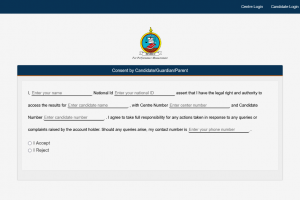
ZIMSEC will ask you to give your consent — either as the student or the guardian.
4. Fill in the Consent Form
Confirm your details and agree to the terms. This step is very important because the portal won’t allow access without consent.
5. Enter Your Examination Details
Now fill in your exam information exactly as it appears on your slip:
Centre Number: A six-digit number for your school.
Candidate Number: Your four-digit candidate ID.
Session: Usually November.
Level: Choose O Level.
Year of Examination: Enter 2025, since the results being released in 2026 are from the 2025 exam sitting.
Double-check all fields to avoid registration errors.
6. Provide Your Personal Information
You’ll be asked to type in:
Candidate Name: Surname first, then first name and initials.
Date of Birth: Use the format dd/mm/yyyy (for example, 07/05/2007).
Make sure the spelling matches your exam slip.
7. Create Your Login Credentials
This is the account you will use to view your results.
Username: Any easy-to-remember name.
Password: Must be strong. A good example is LoveZw24# — it includes:
An uppercase letter
A number
A special character
Avoid simple passwords like "1234" or your name.
8. Complete Registration and Log In
Click “Register” to finish creating your account.
You can now log in using your new username and password.
Once you sign in, your O Level results will appear on your dashboard. You can print or download them for safekeeping.
Final Tip
During result release week, the ZIMSEC website can be slow because thousands of people are trying to log in at the same time. If the page doesn’t load, just wait a few minutes and try again.




Please login or create account to comment.